We've been reviewing customer dashboards for years now, and there's a pattern we keep seeing: beautifully designed dashboards that no one uses.
The charts are technically correct. The colors match the brand. The data is accurate. But when we ask customers how often their users actually open these dashboards, the answer is usually "not much" or "we're not sure."
The problem isn't the data or the design skills. The problem is that most dashboards are designed for the person building them, not the people using them.
When you're embedding analytics into your product, your users aren't data analysts. They're customer success managers checking account health at 9am, sales reps preparing for calls, or operations teams troubleshooting issues in real-time. They need answers to specific questions, and they need them fast.
Why Most Data Visualizations Fail (Before They're Even Opened)
Here's what we hear from customers when their dashboards aren't getting used:
"Our users say the dashboard is 'too busy' but we're showing them exactly what they asked for."
The issue? What users say they want (all the data) is different from what actually helps them make decisions. When you put 12 charts on a page, you've forced users to figure out which one matters. Most won't bother.
The best data visualizations answer a specific question immediately. Not "here's all your data" but "here's whether you're on track" or "here's what needs your attention."
Before you pick a single chart type, start with the questions your users are actually asking. Not the questions you think they should ask, the ones they're asking in support tickets, Slack messages, and customer calls.
Choose Charts That Answer Your Users' Questions
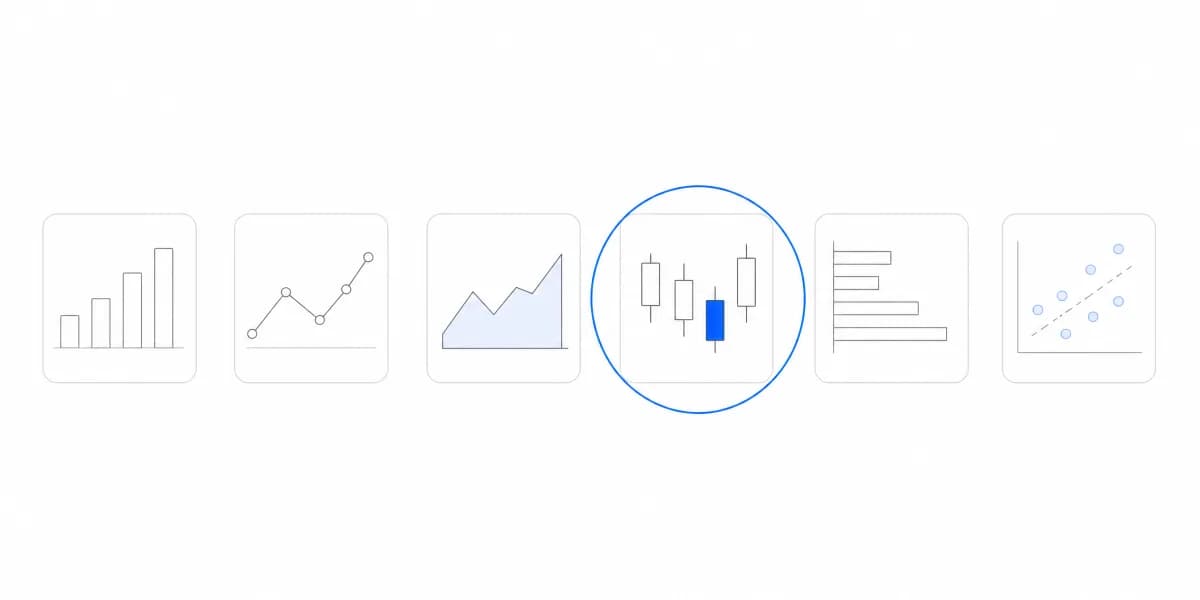
The default in most BI tools is a bar chart. It's safe, it's familiar, and it works for a lot of use cases. But when you default to bar charts for everything, you end up with dashboards that all look the same and don't highlight what matters.
Chart selection should start with the question, not the data type. Avoiding common visualization mistakes starts with understanding what question you're actually answering.
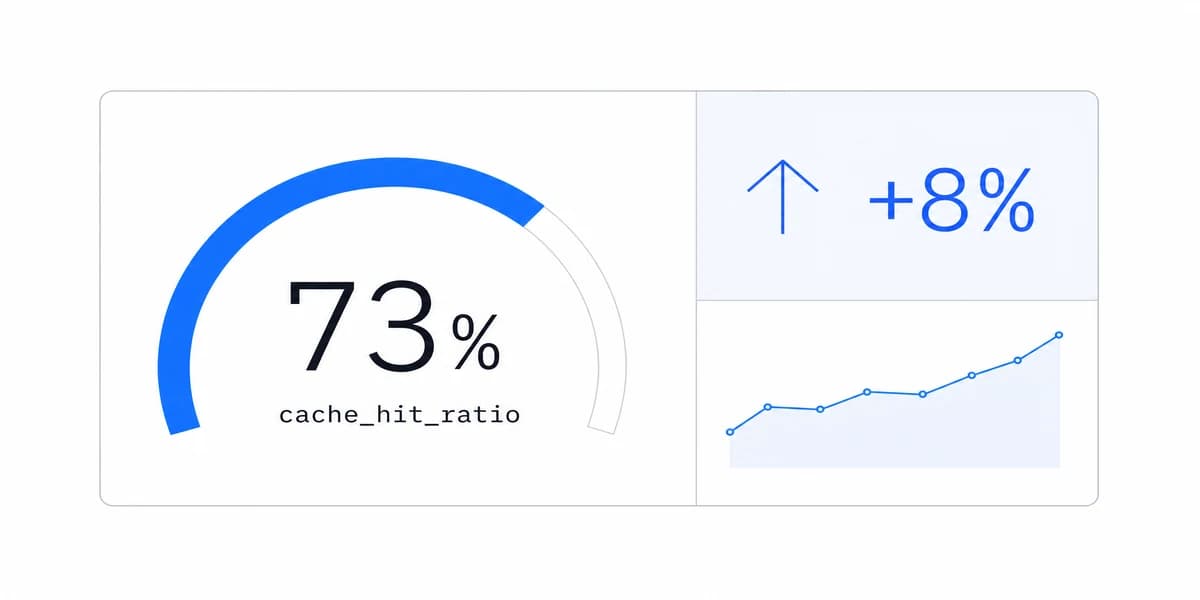
If your users are asking "are we trending up or down," show them a line chart that emphasizes movement over time. If they're asking "which accounts need attention," show them a ranked list or a color-coded table. If they're asking "what's our overall health score," maybe they don't need a chart at all, just a big, clear number.
From customer feedback, we're learning that the most useful dashboards limit chart variety. Three well-chosen chart types that answer three different questions beat 10 different chart types that all show variations of the same thing.
For a complete breakdown of when to use each chart type, check out our complete guide to chart types. Or see practical examples in our chart types reference.
Design for Scanning, Not Reading
When your users open a dashboard, they're not settling in to study it. They're scanning for what matters, and they'll spend about 3-5 seconds deciding if it's worth their time.
This is where most dashboards lose people. Too many colors, too many gridlines, too much text, too many competing elements. The cognitive load is high, and users bounce.
Simplicity isn't about showing less data. It's about showing less at once. For effective dashboard design, remove everything that doesn't directly support the question you're answering:
- Gridlines? Only if they help users read precise values.
- Legends? Embed labels directly on the chart when possible.
- Axis labels? Keep them, but make them readable (no 45-degree text).
- Multiple colors? Use one primary color and one accent for highlighting.
From working with embedded analytics customers, we've found that the dashboards users return to most often are the ones where they can see the answer in under 5 seconds. Everything else is friction.
For more on reducing friction in dashboard design, see our post on dashboard design principles.
The Details That Make or Break Usability
Once you've chosen the right chart and removed the clutter, the details matter more than you'd think.
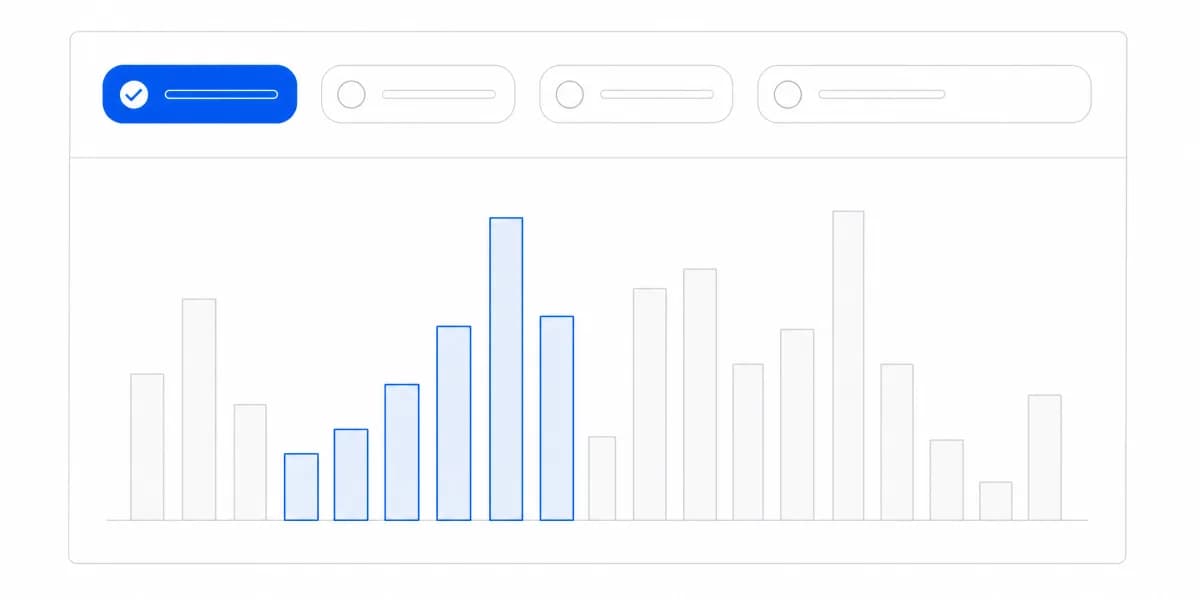
Color should guide attention, not decorate. Use a single primary color for your data and reserve a contrasting accent color (like red or orange) for highlighting exceptions, anomalies, or items that need action. If everything is highlighted, nothing is.
Labels need to explain, not just identify. "Revenue" is an identifier. "Revenue (Last 30 Days)" is an explanation. Your users shouldn't have to guess what time period they're looking at or what filters are applied.
Data accuracy is non-negotiable. A truncated y-axis on a bar chart can make a 5% difference look like a 50% difference. Starting axes at zero isn't about following rules. It's about not misleading your users.
These details compound. A dashboard with intentional color, clear labels, and honest scales feels professional and trustworthy. A dashboard without them feels rushed.
Making Your Dashboards Accessible to Everyone
Accessibility isn't a nice-to-have. It's a baseline requirement. About 8% of men and 0.5% of women have some form of color vision deficiency. If you're using red and green to distinguish between "good" and "bad," roughly 1 in 12 of your male users can't tell the difference.
Use high contrast between your chart elements and the background. Light text on a light background or dark text on a dark background is hard to read for everyone, not just users with visual impairments.
Avoid relying solely on color to convey meaning. If you're marking certain data points as critical, use a combination of color and shape (or color and text label). This helps colorblind users and makes your charts easier to scan for everyone.
Test your dashboards with accessibility tools. Most modern browsers have built-in tools to simulate different types of color blindness. Run your dashboards through them before you ship.
For a deeper dive into making your visualizations work for everyone, see our complete accessibility guide.
These aren't just best practices. They're respect for your users' time and attention.
Start With Your Users' Questions
The best data visualizations aren't built by following rules. They're built by understanding what questions your users are trying to answer, what decisions they're trying to make, and what would actually save them time.
If you're building customer-facing analytics, your users' success is your success. Dashboards that get ignored reflect poorly on your product. Dashboards that users check daily become indispensable.
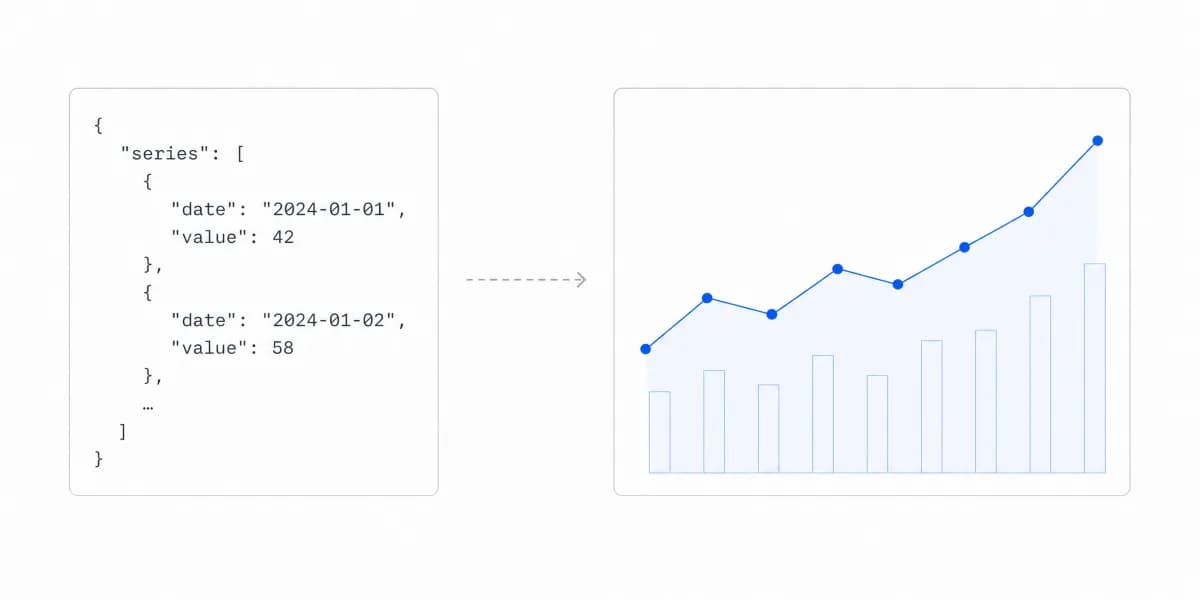
The good news? You don't need to start from scratch. Sumboard helps SaaS teams embed interactive, accessible dashboards that users actually want to use, without the months of development time or the ongoing maintenance burden.
Where to go next
- Chart types guide: more than forty charts grouped by the question each one answers.
- Dashboard Color Theory: build dashboard color roles for grouping, order, status, interaction, contrast.
- Data Visualization articles: every article in this cluster.
Ready to build dashboards your users will actually use?
Sumboard helps you deploy customer-facing analytics in days, not months. Start with our pre-built components and customize from there.