A dashboard shown to customers is sometimes treated as an internal BI screen placed inside a product. That misses the surrounding product context: customers encounter the dashboard through an existing navigation, permission model, vocabulary, device mix, and support path.
The audience may include analysts, operators, executives, or occasional users. The design problem is not their job title; it is whether the page exposes the context and controls required for their task without forcing them to reconstruct the metric elsewhere. That is central to embedded analytics.
Good dashboard design isn't about following every best practice you can find. It's about knowing which principles matter most for your specific use case. Let's break down what actually works when you're building customer-facing dashboards.
Start With Purpose, Not Pixels
Before you touch any design tool, answer one question: What decision does this dashboard help someone make?
Internal dashboards may serve several purposes, such as tracking KPIs, investigating trends, or generating ad-hoc reports. A customer-facing page should have a declared primary task and make any secondary tasks explicit rather than assuming one universal question count.
Example decision statements
- A marketing dashboard for agency clients answers: "Is my campaign working?"
- A financial dashboard for SaaS customers answers: "Where is my budget going?"
- An operational dashboard for logistics clients answers: "Are my shipments on track?"
Different dashboard types serve different purposes. Strategic dashboards show high-level trends. Operational dashboards show real-time status. The design follows the purpose.
Record how often each audience performs the task and what context they retain between visits. An occasional user may need definitions and orientation that a daily operator does not; product research should decide, not a universal weekly or monthly assumption.
Visual Hierarchy: Put the Answer First
Visual hierarchy should make the intended reading order apparent, while the DOM order preserves the same logic for keyboard and screen-reader users.
The inverted pyramid principle structures dashboards in three layers:
- Top layer: Status and targets ("Are we good?")
- Middle layer: Trends and context ("What's changing?")
- Bottom layer: Details and drill-downs ("Why did this happen?")
This is a useful content hierarchy, not a universal layout law. Test whether users can locate and interpret the primary answer within the task's acceptable time; record errors as well as speed.
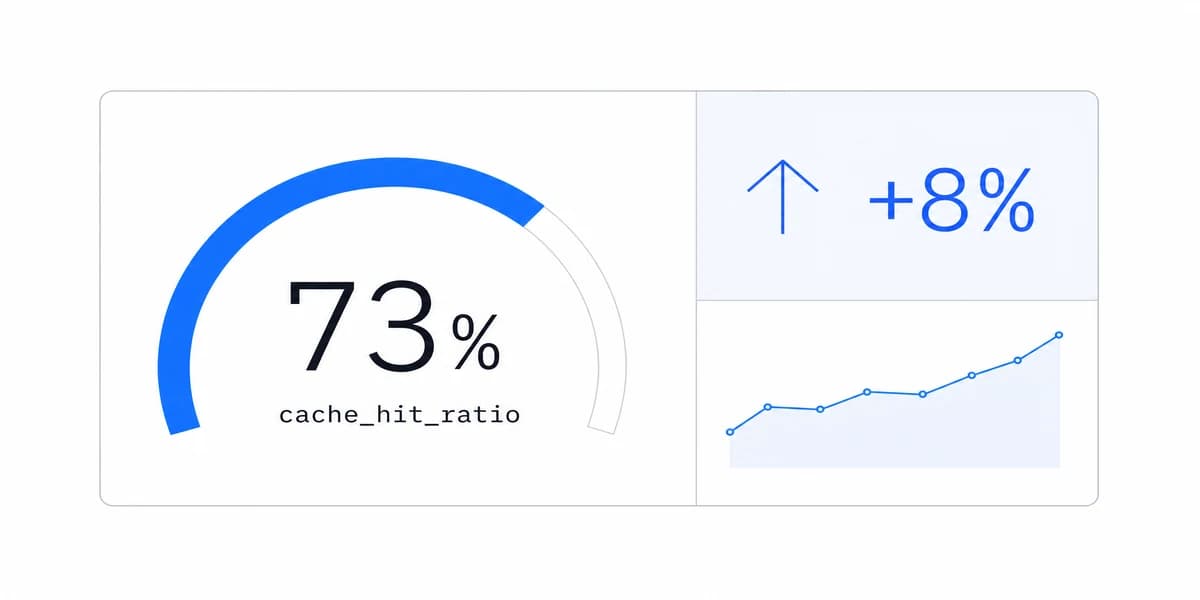
A summary card can work for a single metric when it includes a clear label, time period, comparison basis, unit, and state. A large number without those elements is ambiguous.
On mobile, prioritize the first viewport according to the primary task, then test scrolling, sticky controls, touch targets, and orientation changes on representative devices.
Manage Cognitive Load Without a Magic Chart Count
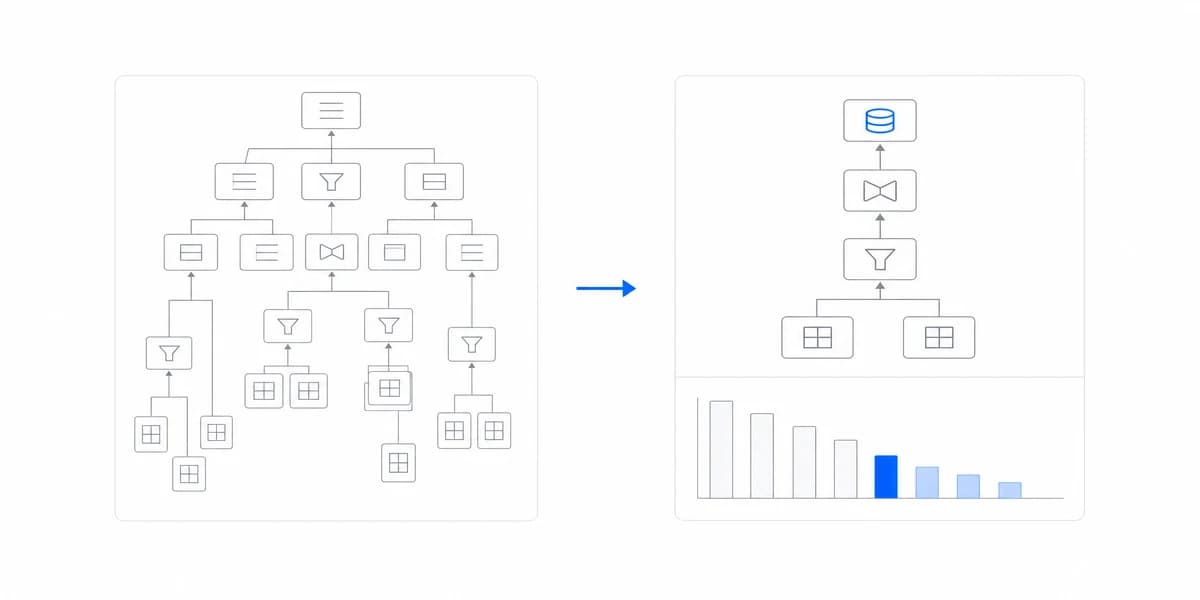
Miller's work on short-term memory is often repeated as a 7±2 interface rule, but it does not establish a maximum number of dashboard charts. Density becomes a problem when hierarchy is weak, comparisons are fragmented, labels compete, or secondary information obscures the primary task.
Ways to reduce unnecessary load
- Keep the information required for the primary task in the initial layer
- Group related metrics visually (use containers or subtle borders)
- Use white space to separate distinct sections
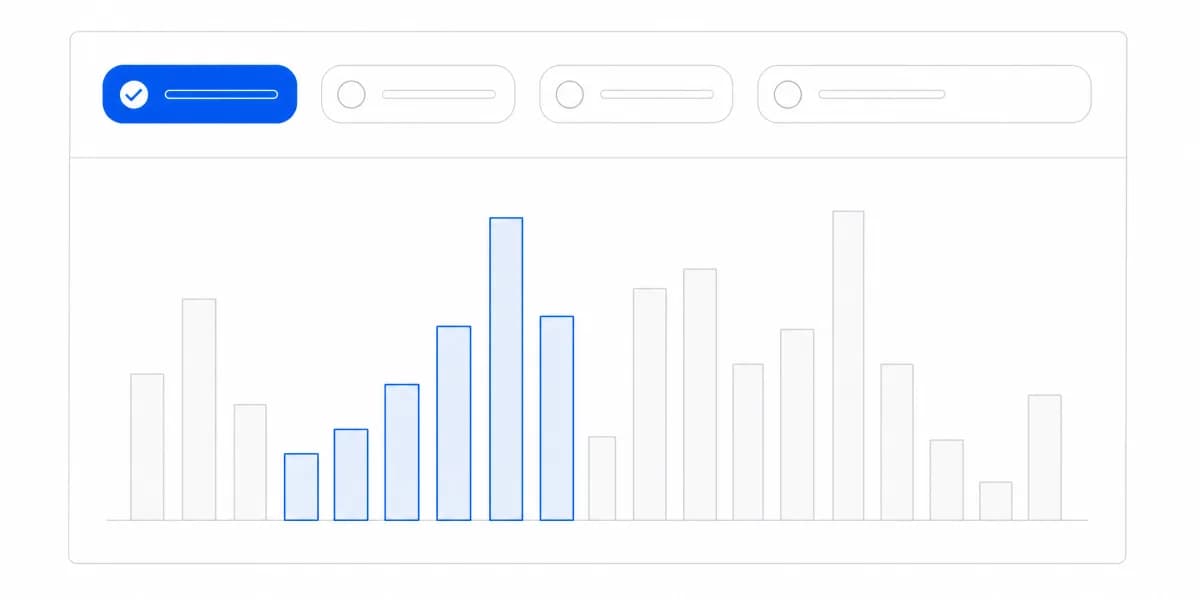
- Move diagnostic detail behind an explicit drill-down, tab, or expansion
- Remove repeated legends, labels, and controls that do not change the decision
White space isn't wasted space. It's a design feature. It guides the eye and reduces visual noise.
Compare the existing and revised page with task completion, interpretation errors, time to locate the answer, and follow-up actions. Usage alone cannot tell whether the dashboard supported the right decision.
Choose the Right Chart for the Job
Not all charts are created equal. The wrong visualization can hide insights or, worse, mislead users.
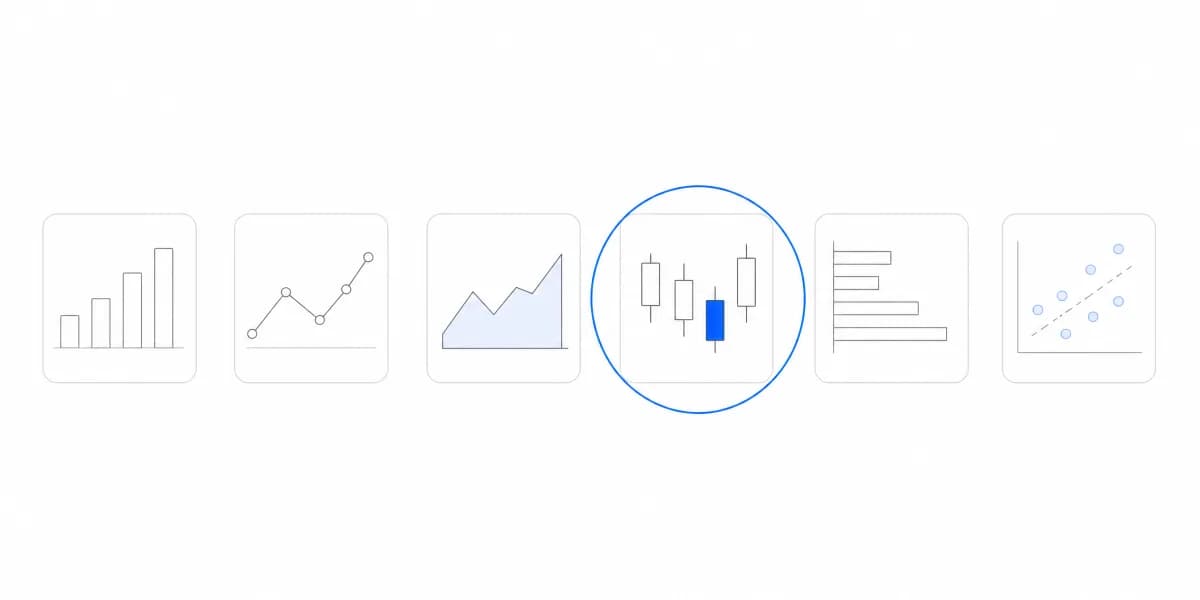
Match the chart to the task
For categorical comparison → Start by testing bars
- Encode magnitude on a common baseline
- Choose orientation from label length, ordering, and available width
- Test missing, negative, extreme, and tightly clustered values
For ordered change over time → Start by testing lines
- Preserve temporal order and make gaps explicit
- Use direct labels or another distinguishable series cue where possible
- Limit simultaneous series when labels, colors, and intersections stop being distinguishable
For part-to-whole questions → Define the total before selecting the form
- A stacked bar can support component and total comparison
- Small multiples or a table may work better when exact component comparison matters
- Pie or donut charts require distinguishable slices and a task suited to approximate angular judgment
For lookup and exact values → Test a table
- Preserve units, precision, sort, and scope
- Prioritize columns for the task
- Support responsive or user-controlled column visibility when needed
The full breakdown of when to use each chart type is in our chart types guide.
Area charts add a filled baseline and therefore imply magnitude or accumulation. Use them only when that encoding matches the question; otherwise test whether a line makes change easier to interpret.
Consistency Makes Dashboards Feel Fast
Consistency should preserve meaning, not force one chart form onto every occurrence of a metric. Revenue by category may use bars while revenue over time uses a line; both should retain the same definition, unit, scope, sign convention, and source context.
Consistency reduces cognitive load. Users learn the visual language once and apply it everywhere. This makes dashboards feel faster, even when the data loads at the same speed.
Semantics and formatting to standardize
- Metric definition, unit, precision, sign, and comparison basis
- Status meaning with text or shape in addition to color
- Date range, timezone, and freshness presentation
- Filter state, missing-data treatment, labels, and interaction feedback
For B2B SaaS products with multiple dashboards, a design system can encode these decisions once. Component defaults still need acceptance tests across realistic data, themes, states, devices, and assistive technology.
Learn more about building cohesive customer-facing analytics experiences.
Design for Action, Not Just Display
Effective operational dashboards connect information to a next step when the product can support that action.
Every visualization should answer: "What should I do about this?"
Choose filters and drill-downs by user intent
- Filters let users slice data themselves (good for exploratory analysis)
- Drill-downs guide users to specific details (good for operational dashboards)
Filters support user-defined slices; drill-downs preserve a guided path from summary to detail. A dashboard may need either or both depending on the questions users bring.
Real-time vs scheduled refreshes: Not every dashboard needs real-time data. Match freshness to the time in which a user can still change the outcome, then expose delayed, stale, partial, and disconnected states.
The practical difference is control: a filter lets the customer answer a follow-up question without requesting another report.
For more tactical examples of effective dashboard design, explore our collection of KPI dashboard examples across different industries.
Where to go next
- Chart types guide: more than forty charts grouped by the question each one answers.
- Bad Data Visualization: seven charts that lost their readers, each with the defect named.
- Data Visualization articles: every article in this cluster.
Ready to launch customer-facing analytics?
Stop losing customers to competitors with better analytics. Sumboard's customer-facing analytics platform lets you launch self-service dashboards in days, not months.