We've been noticing a pattern in how people actually use customer-facing analytics. The product manager who embedded your dashboard? She's viewing it on her laptop during development. But her customers (the end users of your SaaS product) are checking key metrics on their phones between meetings, on tablets during client presentations, and on ultra-wide monitors at their desks.
The problem: Most dashboard designs are optimized for the developer's laptop, not the end user's reality.
From customer feedback, we're learning that responsive design isn't just about making things "fit" on smaller screens. It's about understanding how different users consume data in different contexts.
Why Mobile-First Thinking Matters for Customer-Facing Analytics
Here's what we're seeing in real usage patterns: C-suite executives pull up dashboards on their phones during morning commutes. Finance teams review quarterly numbers on tablets during board meetings. Operations managers check real-time metrics on ultra-wide displays in NOCs.
The traditional approach (design for desktop, then try to make it work on mobile) breaks down when you're building customer-facing analytics for your users, whether in house or on a customer-facing analytics product like ours.
Your customers' customers don't care about your development workflow. They want their data accessible, readable, and actionable on whatever device they happen to be using.
In B2B SaaS, this multi-device reality is even more pronounced. The same person might check a high-level metric on their phone in the morning, drill into details on their laptop during the workday, and present findings on a large screen during client meetings.
Every Responsive Dashboard Hits the Same Wall, and the Wall Is Tables
Every designer who's tackled responsive dashboards hits the same wall: tables.
Charts scale reasonably well. KPI cards are flexible. But a 12-column comparison table? That's where responsive design gets real.
The pattern we're seeing: Teams try to solve this by cramming everything into a tiny viewport, making text unreadable, or hiding critical columns behind interaction patterns that don't make sense on touch devices.
Here's what actually works:
Progressive disclosure. On mobile, show the 3-4 most critical columns. Put the rest behind a tap to expand. The key is choosing those core columns based on user research, not assumptions.
Card transformation. Convert table rows into cards on smaller screens. Each card shows the same data, but in a vertically-stacked format that works with thumb scrolling.
Horizontal scrolling for detail. Controversial take: horizontal scrolling isn't always bad. For data-dense tables where users need to see everything, a well-implemented horizontal scroll beats hiding information. Just make it obvious that more columns exist.
From working with teams building embedded dashboards, we've learned that the right choice depends on your specific use case. Financial dashboards often need horizontal scrolling to preserve data integrity. Marketing dashboards work better with card transformations.
A Grid Can Reflow Independent Sections, but Not Ones That Tell a Story Together
Grid-based layouts are the standard recommendation, but there's nuance worth discussing.
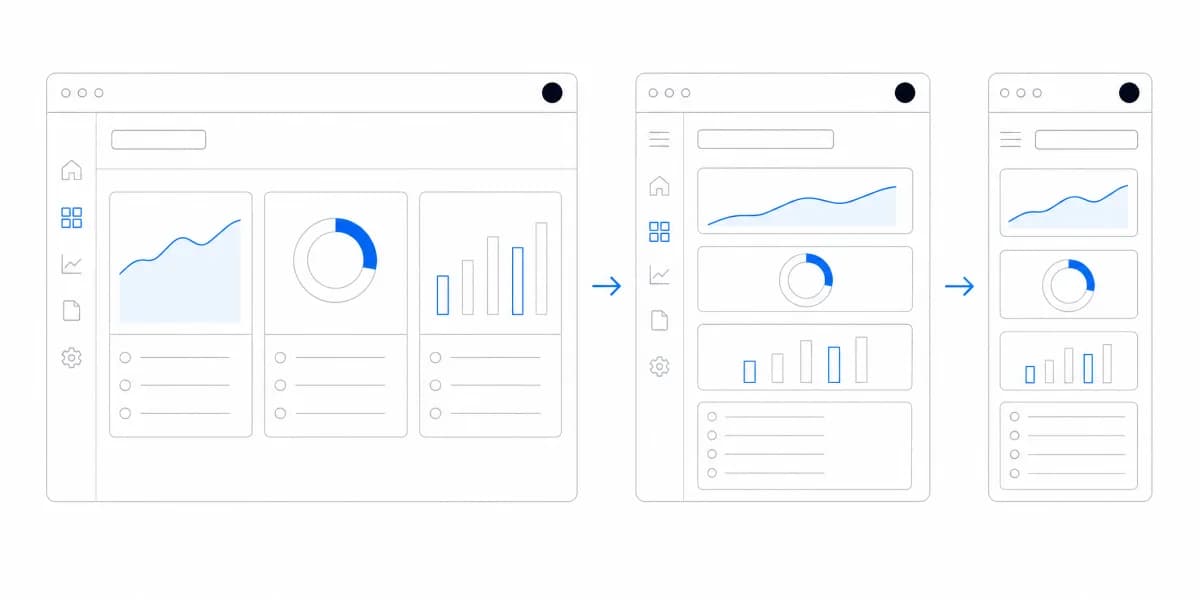
Auto-reflow grids work when your dashboard sections are relatively independent. Revenue, expenses, and cash flow metrics can stack vertically without losing meaning. The grid reflows from 3-across on desktop to 1-across on mobile, and everything still makes sense.
Fixed section relationships matter when your sections tell a story together. If you're showing conversion rates alongside funnel stages, breaking that visual connection on mobile destroys the narrative.
In these cases, consider keeping related elements grouped even if it means more scrolling.
Card-based designs excel on mobile because they work with natural scrolling patterns. Users are comfortable with card interfaces from social media and email apps. The challenge is ensuring each card contains enough context to be meaningful in isolation.
This connects directly to broader dashboard design principles, responsive isn't just a technical constraint, it's a design opportunity to rethink information hierarchy.
Responsive Design Is About Device and Network Constraints, Not Only Layout
Responsive design isn't just about layout. It's about respecting the constraints of mobile devices and networks.
Network reality check: Your mobile users aren't always on Wi-Fi. Loading a 50-row table with embedded charts over a 3G connection creates a terrible experience.
Progressive loading should make the first useful decision available before secondary detail and expensive visualizations.
- Show critical KPIs immediately (they load fast)
- Lazy load detailed tables as users scroll
- Defer complex visualizations until interaction
Chart complexity matters. A 100-point line chart that looks great on desktop becomes unreadable on mobile, and takes forever to render. On smaller screens, aggregate to fewer data points. Show weekly trends instead of daily. Monthly instead of weekly.
The performance difference is measurable. We've seen dashboard load times drop from 8 seconds to 2 seconds on mobile just by being smart about what renders when.
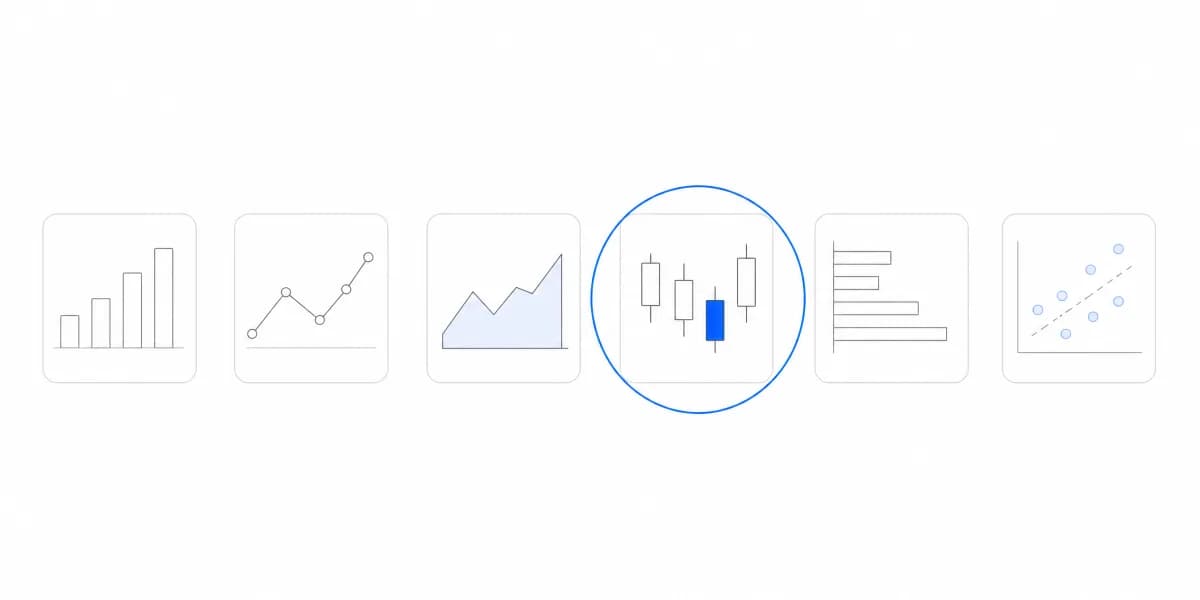
For teams working with chart types across devices, this means making deliberate choices about visualization complexity based on viewport size.
Resizing the Browser Is Not Mobile Testing
Here's where most teams get it wrong: they resize their browser, call it "mobile testing," and ship.
Real device testing reveals different issues:
Touch targets matter. That dropdown that works fine with a mouse cursor? Try tapping it accurately with your thumb. Small interactive elements need at least 44x44px tap areas on mobile.
Orientation changes happen. Users rotate their devices mid-session. Your dashboard should handle landscape-to-portrait switches gracefully, not break the layout or lose scroll position.
Font rendering differs. Text that's readable on your high-DPI laptop might be too small on an actual phone. Test on real devices with varying screen qualities.
Hover states don't exist on touch. That elegant tooltip that appears on hover? On mobile, you need a tap interaction instead. And that creates its own UX challenges.
This overlaps with visualization accessibility concerns, responsive design and accessible design solve many of the same problems through different approaches.
Teams That Get This Right Prototype on Real Devices Early
The teams that succeed with responsive dashboard design share a common approach: they prototype on actual devices early, not as an afterthought.
Start with mobile constraints. Design for the smallest screen first, then enhance for larger displays. This forces you to prioritize information hierarchy from the beginning.
Test in context. Don't just test on an iPhone at your desk. Test in bright sunlight (readability). Test with one hand while holding coffee (thumb reach). Test in a moving car (motion and attention constraints).
Measure real usage. Instrument your dashboards to understand device distribution and interaction patterns. You might discover that 60% of your users primarily access dashboards on tablets, that should influence your design priorities.
The goal isn't pixel-perfect consistency across devices. It's ensuring that the data visualization tells the same story and remains actionable regardless of screen size.
Where to go next
- Chart types guide: more than forty charts grouped by the question each one answers.
- Dashboard Color Theory: build dashboard color roles for grouping, order, status, interaction, contrast.
- Data Visualization articles: every article in this cluster.
Ready to launch customer-facing analytics?
Stop losing customers to competitors with better analytics. Sumboard's customer-facing analytics platform lets you launch self-service dashboards in days, not months.