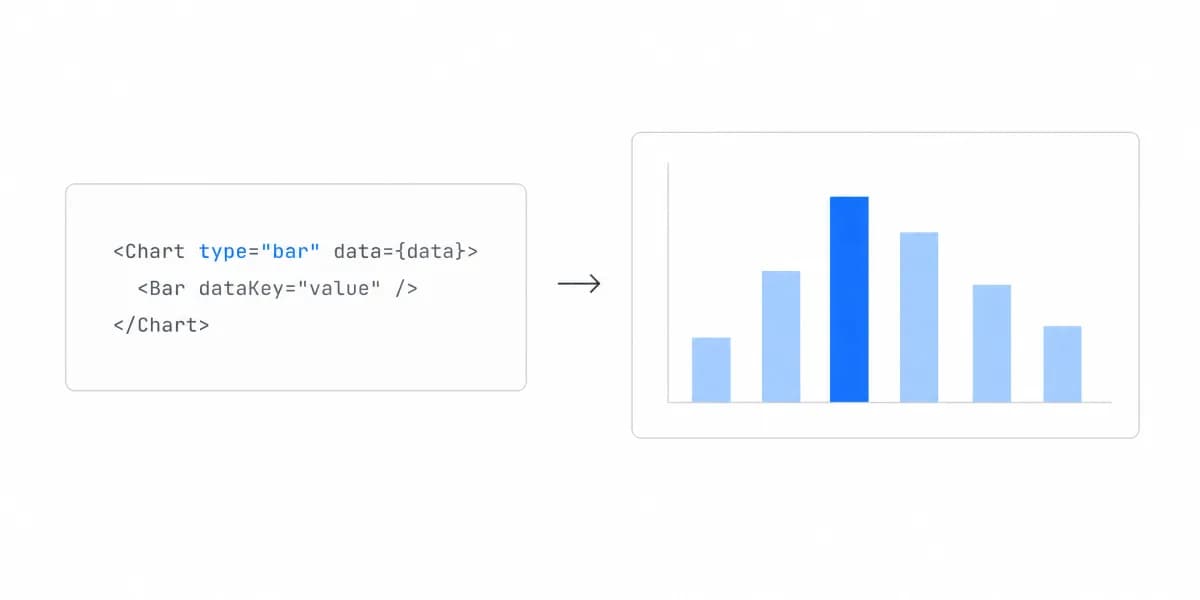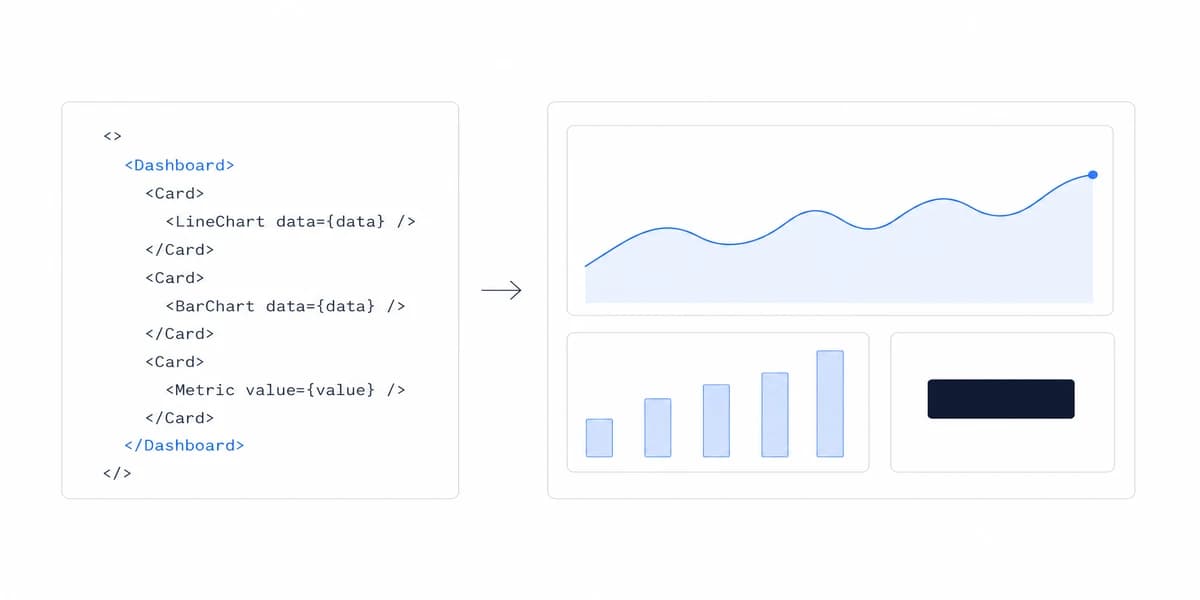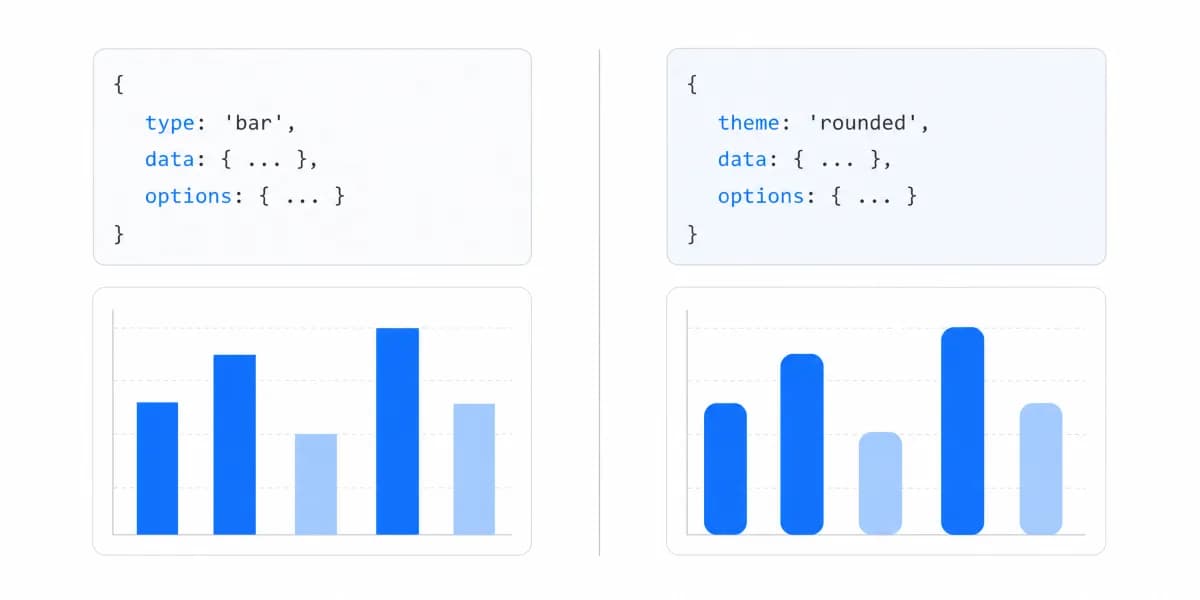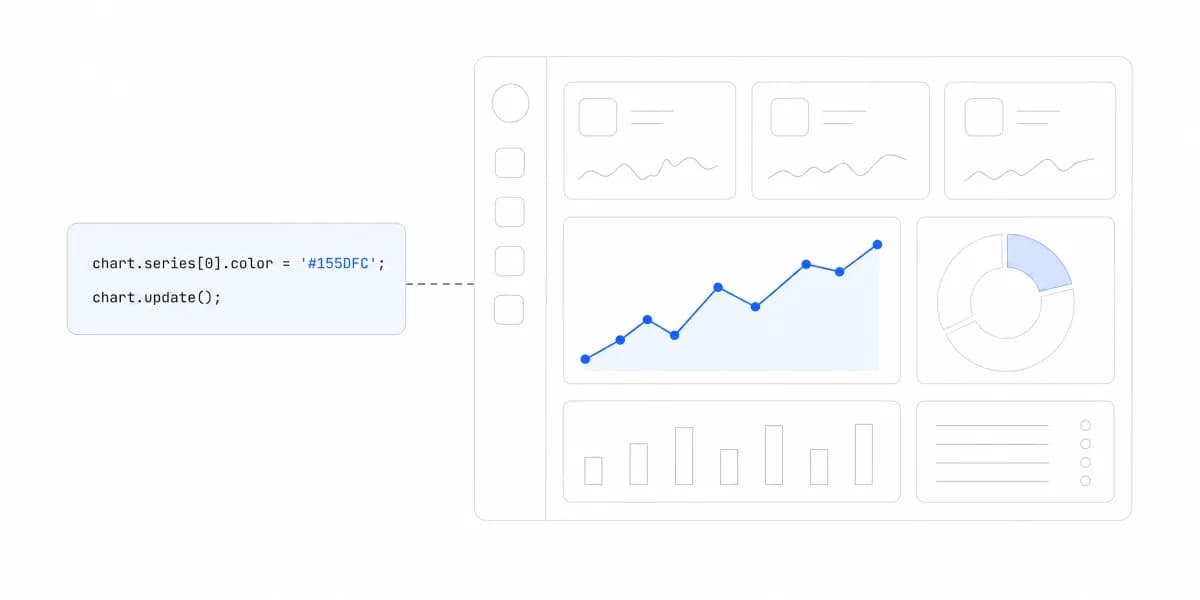
A basic Chart.js chart can render with little code. Production readiness adds data semantics, responsive layout, accessibility, lifecycle cleanup, measured performance, error and empty states, localization, and tests.
Chart.js Renders to Canvas, Which Is the Decision Behind Everything Else It Does
When building embedded analytics, either from scratch or on an embedded analytics product like Sumboard's, Chart.js is one canvas-based option for common chart types. Its fit depends on the required interactions, accessibility approach, data density, bundle strategy, framework integration, and maintenance ownership.
Canvas avoids creating a DOM node for every mark, but it does not guarantee acceptable performance. Parsing, normalization, labels, animations, interaction, point count, device, and update frequency all affect the result. Chart.js publishes specific performance guidance, including prepared data, decimation, and disabling animations where measurement justifies it.
Chart.js provides common chart types, mixed charts, plugins, and configuration APIs. It is a rendering library, not a data model, query engine, tenant authorization layer, or complete analytics product.
The trade-off is a bounded chart abstraction and canvas output. Compare it with lower-level or domain-specific libraries using a representative visualization and acceptance tests rather than assuming one library is universally easier or more customizable.
A Minimal Chart.js Bar Chart Establishes the Rendering Path, Not a Production Component
The following example establishes the rendering path; it is not yet a production component.
Step 1: Include Chart.js
You can use the CDN for quick testing:
<script src="https://cdn.jsdelivr.net/npm/chart.js"></script>
Or install via npm for production apps:
npm install chart.js
Step 2: Create the canvas
Chart.js renders to an HTML5 canvas element:
<div style="width: 600px; height: 400px;">
  <canvas
    id="revenueChart"
    role="img"
    aria-label="Monthly revenue for January through May"
  >
    <p>Monthly revenue: Jan $12,000; Feb $19,000; Mar $15,000; Apr $25,000; May $22,000.</p>
  </canvas>
</div>
Chart.js requires a dedicated, relatively positioned parent when it manages responsive sizing. Apply relative dimensions to that container, not directly to the canvas. The official responsive chart documentation explains the constraint.
Step 3: Initialize the chart
// For the npm quick start. A production bundle can register only the
// controllers, elements, scales, and plugins it uses.
import Chart from 'chart.js/auto';

const ctx = document.getElementById('revenueChart');

new Chart(ctx, {
  type: 'bar',
  data: {
    labels: ['Jan', 'Feb', 'Mar', 'Apr', 'May'],
    datasets: [{
      label: 'Monthly Revenue',
      data: [12000, 19000, 15000, 25000, 22000],
      backgroundColor: '#2563eb',
      borderWidth: 0
    }]
  },
  options: {
    responsive: true,
    maintainAspectRatio: false,
    scales: {
      y: {
        beginAtZero: true,
        ticks: {
          callback: function(value) {
            return '$' + value.toLocaleString();
          }
        }
      }
    }
  }
});
This produces a working chart. Before shipping, localize the currency, expose the underlying values in an accessible form where the task needs them, and test the container at supported widths.
Multi-Dataset Chart.js Charts Compare Actual Against Target, and Colour Alone Cannot Carry It
Many dashboards need to compare actual with target, periods, or product lines. Confirm that the comparison shares a meaningful scale and does not overload the chart.
Chart.js handles multiple datasets cleanly, making it ideal for React dashboard components and other modern frameworks:
new Chart(ctx, {
  type: 'line',
  data: {
    labels: ['Jan', 'Feb', 'Mar', 'Apr', 'May'],
    datasets: [
      {
        label: '2024 Revenue',
        data: [12000, 19000, 15000, 25000, 22000],
        borderColor: '#2563eb',
        tension: 0.4
      },
      {
        label: '2023 Revenue',
        data: [10000, 16000, 14000, 20000, 18000],
        borderColor: '#94a3b8',
        tension: 0.4
      }
    ]
  },
  options: {
    interaction: {
      mode: 'index',
      intersect: false
    },
    plugins: {
      legend: {
        position: 'bottom'
      }
    }
  }
});
The interaction.mode: 'index' setting groups items at the same index in the tooltip. Test keyboard and touch alternatives; hover behavior alone is not an accessible interaction contract.
Use your product's primary color for current data, muted grays for historical comparisons. Chart.js makes this easy with backgroundColor and borderColor arrays.
Four Chart.js Patterns That Only Show Up in Production
Production acceptance should cover the following patterns:
1. Responsive sizing that works
responsive defaults to true. Set maintainAspectRatio: false only when the product intentionally controls height through a dedicated container:
.chart-container {
  position: relative;
  width: 100%;
  height: 400px;
}
2. Handle empty states gracefully
Distinguish no results, unavailable data, permission denial, failed load, and filtered-to-empty states:
if (!data || data.length === 0) {
  // Show "No data available" message instead of broken chart
  return;
}
3. Update existing charts; destroy them during cleanup
For ordinary data changes, mutate the chart data and call update(). Call destroy() before reusing the same canvas for another instance and during framework cleanup. Chart.js documents both update and destroy:
function updateChart(chart, nextValues) {
  chart.data.datasets[0].data = nextValues;
  chart.update('none');
}

// Run when the component unmounts or before the canvas is reused.
chart.destroy();
4. Use community plugins for common features
Community plugins can add features, but verify compatibility, license, accessibility, bundle impact, maintenance, and cleanup behavior for the installed Chart.js version. Examples include:
- chartjs-plugin-datalabels for showing values on bars
- chartjs-plugin-zoom for interactive exploration
- Custom tooltips for richer data context
Our JavaScript charting libraries guide covers the broader renderer and ownership trade-offs.
Measure before tuning
Use representative data and the slowest supported device. Record initial render, update latency, interaction responsiveness, memory, and layout stability. Chart.js documents prepared internal data with parsing: false, normalized: true for already normalized datasets, line-data decimation, fixed tick rotation, and disabling animations as possible optimizations. Each has preconditions or presentation trade-offs; apply it after profiling rather than as a universal preset.
Provide an accessible equivalent
Chart.js renders into a canvas whose drawn content is not exposed to screen readers automatically. The official accessibility guidance requires the implementer to add an accessible name or fallback content. For analytical tasks, also consider a data table, summary, keyboard-operable controls, non-colour encodings, focus management, and accessible update announcements.
Theming Chart.js to a Host Product Means Reading Your Tokens, Not Hard-Coding Hexes
Canvas does not inherit CSS. A chart drawn inside your product picks up none of the colour, font, or spacing decisions the rest of the page already made, so every one of them has to be read and passed in: font family and size, series and grid colours, tick and label contrast, tooltip surface.
Reading them from computed styles or from your design tokens rather than pasting hex values keeps one source of truth, and it is what makes a runtime theme switch possible at all. A chart drawn under a light theme stays light until something redraws it, which makes dark mode a lifecycle question rather than a stylesheet one: listen for the theme change, update the relevant options, and redraw. The same applies to a tenant theme in a multi-brand product, where the values arrive per viewer rather than per user preference.
Exporting a Canvas Chart Is Easy, and Matching It to the Screen Is Not
toDataURL() returns a PNG of what was drawn, which is less than it sounds. It captures the current device pixel ratio, the current container size, the current animation frame, and nothing around the chart.
For a scheduled report, an emailed summary, or a PDF, the reliable route is to render the chart again under controlled conditions rather than to screenshot a user's window: fixed dimensions, animations disabled, fonts guaranteed to be loaded, and a known pixel ratio, in a headless browser or a server-side canvas. That produces the same image every time, which is the property an artefact someone files or forwards actually needs.
Chart.js Fits When Its Abstraction and Canvas Output Match the Product
Chart.js is a candidate when its abstraction and canvas output fit the product.
Use Chart.js when
- You need standard chart types (bar, line, pie, scatter)
- Canvas rendering and the planned accessibility equivalent meet the requirements
- The required interactions and plugins are supported and maintainable
- Representative performance tests pass after appropriate data reduction
Evaluate another route when
- You need highly custom visualizations (use D3.js)
- The task requires DOM-level mark semantics or styling that canvas does not provide
- The product needs a domain-specific statistical, geographic, network, or 3D toolkit
- The measured point density or update frequency exceeds the acceptable browser budget
- The team needs a complete analytics platform rather than a rendering library
The comparison between Chart.js and Highcharts includes API fit, accessibility, supported chart types, maintenance, and the licenses that apply to the intended distribution. Verify current terms with each project or vendor.
For embedded analytics, Chart.js supplies rendering only. The product still owns data semantics, authorization, tenancy, queries, exports, accessibility, responsive behavior, observability, and support.
Where to go next
- JavaScript charting libraries guide: where each library stops, and what that costs you at the boundary.
- Building Dashboards with ECharts: ECharts handles complex visualizations well.
- Charting Libraries articles: every article in this cluster.
Evaluate the full analytics ownership boundary
Compare a charting-library build with a managed platform using the same dashboard, data, tenancy, accessibility, performance and support requirements.